[Becoming Minimalist]
image uploaded by Frederic Poirot
Many years ago, a 10-year-old boy walked up to the counter of a soda shop and climbed onto a stool. he caught the eye of the waitress and asked, “how much is an ice cream sundae?”
“fifty cents,” the waitress replied. the boy reached into his pockets, pulled out a handful of change, and began counting. the waitress frowned impatiently. after all, she had other customers to wait on.
the boy squinted up at the waitress. “how much is a dish of plain ice cream?” he asked. the waitress sighed and rolled her eyes. “thirty-five cents,” she said with a note of irritation.
again, the boy counted his coins. at last, he said, “i’ll have the plain ice cream, please.” he put a quarter and two nickels on the counter. the waitress took the coins, brought the ice cream, and walked away.
about ten minutes later, she returned and found the ice cream dish empty. the boy was gone. she picked up the empty dish—then swallowed hard. there on the counter, next to the wet spot where the dish had been, were two nickels and five pennies.
the boy had had enough for a sundae, but he had ordered plain ice cream so he could leave her a tip.
- source: mr. little john’s secrets to a lifetime of success
in a world that tells us to “get all we can,” every so often it’s good to be reminded to “give something away.”
The boy and the sundae
2010-03-31
0
thoughts

How I’d Hack Your Weak Passwords

Internet standards expert, CEO of web company iFusion Labs, and blogger John Pozadzides knows a thing or two about password security—and he knows exactly how he'd hack the weak passwords you use all over the internet.
Note: This isn't intended as a guide to hacking *other people's* weak passwords. Instead, the aim is to help you better understand the security of your own passwords and how to bolster that security.
If you invited me to try and crack your password, you know the one that you use over and over for like every web page you visit, how many guesses would it take before I got it?
Let's see… here is my top 10 list. I can obtain most of this information much easier than you think, then I might just be able to get into your e-mail, computer, or online banking. After all, if I get into one I'll probably get into all of them.
- Your partner, child, or pet's name, possibly followed by a 0 or 1 (because they're always making you use a number, aren't they?)
- The last 4 digits of your social security number.
- 123 or 1234 or 123456.
- 'password'
- Your city, or college, football team name.
- Date of birth – yours, your partner's or your child's.
- 'god'
- 'letmein'
- 'money'
- 'love'
Statistically speaking that should probably cover about 20% of you. But don't worry. If I didn't get it yet it will probably only take a few more minutes before I do…
Hackers, and I'm not talking about the ethical kind, have developed a whole range of tools to get at your personal data. And the main impediment standing between your information remaining safe, or leaking out, is the password you choose. (Ironically, the best protection people have is usually the one they take least seriously.)
One of the simplest ways to gain access to your information is through the use of a Brute Force Attack. This is accomplished when a hacker uses a specially written piece of software to attempt to log into a site using your credentials. Insecure.org has a list of the Top 10 FREE Password Crackers right here.
So, how would one use this process to actually breach your personal security? Simple. Follow my logic:
- You probably use the same password for lots of stuff right?
- Some sites you access such as your Bank or work VPN probably have pretty decent security, so I'm not going to attack them.
- However, other sites like the Hallmark e-mail greeting cards site, an online forum you frequent, or an e-commerce site you've shopped at might not be as well prepared. So those are the ones I'd work on.
- So, all we have to do now is unleash Brutus, wwwhack, or THC Hydra on their server with instructions to try say 10,000 (or 100,000 – whatever makes you happy) different usernames and passwords as fast as possible.
- Once we've got several login+password pairings we can then go back and test them on targeted sites.
- But wait… How do I know which bank you use and what your login ID is for the sites you frequent? All those cookies are simply stored, unencrypted and nicely named, in your Web browser's cache. (Read this post to remedy that problem.)
And how fast could this be done? Well, that depends on three main things, the length and complexity of your password, the speed of the hacker's computer, and the speed of the hacker's Internet connection.
Assuming the hacker has a reasonably fast connection and PC here is an estimate of the amount of time it would take to generate every possible combination of passwords for a given number of characters. After generating the list it's just a matter of time before the computer runs through all the possibilities – or gets shut down trying.
Pay particular attention to the difference between using only lowercase characters and using all possible characters (uppercase, lowercase, and special characters – like @#$%^&*). Adding just one capital letter and one asterisk would change the processing time for an 8 character password from 2.4 days to 2.1 centuries.

Remember, these are just for an average computer, and these assume you aren't using any word in the dictionary. If Google put their computer to work on it they'd finish about 1,000 times faster.
Now, I could go on for hours and hours more about all sorts of ways to compromise your security and generally make your life miserable – but 95% of those methods begin with compromising your weak password. So, why not just protect yourself from the start and sleep better at night?
Believe me, I understand the need to choose passwords that are memorable. But if you're going to do that how about using something that no one is ever going to guess AND doesn't contain any common word or phrase in it.
Here are some password tips:
- Randomly substitute numbers for letters that look similar. The letter ‘o' becomes the number ‘0′, or even better an ‘@' or ‘*'. (i.e. – m0d3ltf0rd… like modelTford)
- Randomly throw in capital letters (i.e. – Mod3lTF0rd)
- Think of something you were attached to when you were younger, but DON'T CHOOSE A PERSON'S NAME! Every name plus every word in the dictionary will fail under a simple brute force attack.
- Maybe a place you loved, or a specific car, an attraction from a vacation, or a favorite restaurant?
- You really need to have different username / password combinations for everything. Remember, the technique is to break into anything you access just to figure out your standard password, then compromise everything else. This doesn't work if you don't use the same password everywhere.
- Since it can be difficult to remember a ton of passwords, I recommend using Roboform for Windows users. It will store all of your passwords in an encrypted format and allow you to use just one master password to access all of them. It will also automatically fill in forms on Web pages, and you can even get versions that allow you to take your password list with you on your PDA, phone or a USB key. If you'd like to download it without having to navigate their web site here is the direct download link. (Ed. note: Lifehacker readers love the free, open-source KeePass for this duty, while others swear by the cross-platform, browser-based LastPass.)
- Mac users can use 1Password. It is essentially the same thing as Roboform, except for Mac, and they even have an iPhone application so you can take them with you too.
- Once you've thought of a password, try Microsoft's password strength tester to find out how secure it is.
By request I also created a short RoboForm Demonstration video. Hope it helps…
Another thing to keep in mind is that some of the passwords you think matter least actually matter most. For example, some people think that the password to their e-mail box isn't important because 'I don't get anything sensitive there.' Well, that e-mail box is probably connected to your online banking account. If I can compromise it then I can log into the Bank's Web site and tell it I've forgotten my password to have it e-mailed to me. Now, what were you saying about it not being important?
Often times people also reason that all of their passwords and logins are stored on their computer at home, which is save behind a router or firewall device. Of course, they've never bothered to change the default password on that device, so someone could drive up and park near the house, use a laptop to breach the wireless network and then try passwords from this list until they gain control of your network — after which time they will own you!
Now I realize that every day we encounter people who over-exaggerate points in order to move us to action, but trust me this is not one of those times. There are 50 other ways you can be compromised and punished for using weak passwords that I haven't even mentioned.
I also realize that most people just don't care about all this until it's too late and they've learned a very hard lesson. But why don't you do me, and yourself, a favor and take a little action to strengthen your passwords and let me know that all the time I spent on this article wasn't completely in vain.
Please, be safe. It's a jungle out there.
EDIT: You might also want to listen to my interview on Connecticut Public Radio about password security.
How I'd Hack Your Weak Passwords [One Man's Blog]
5 Commonly Misunderstood Things on Twitter
2010-03-30
0
thoughts

As Twitter evolves, many things become either forgotten or ignored. There are mistakes that people make because they’re new or unaware, but sometimes people just don’t do certain things because they’re not reminded of their functions. Here are 5 common things people tend to lose track of.
1. Starting a Tweet with an @
This is definitely the top mistake I see being made on Twitter. They want to mention somebody by their Twitter name but they don’t realize that when you start a Tweet with an @, the only people who see it are the people who follow you and that person. This wasn’t the case before May 2009 or so when Twitter changed it.
To get around it, many people will start a Tweet with a period but I prefer when people rework their sentence so it doesn’t seem so obvious. Something like “So @somebody and I were at dinner….”
2. Putting your Twitter profile address in the URL field
All Twitter users have a few profile fields they can use for information like name, location, a short bio and website. Many people put their Twitter profile in the web address which serves no purpose. We already know that address because we are on it. Leave it blank or link out to somewhere else online – your blog, your Facebook profile, whatever.
3. Thinking the new RT feature is untrackable
The new RT feature has caused a bit of confusion but one of the things I see the most is when users say they don’t know who has RTed them using this new RT feature. A business once even held a contest recently and said “please RT us but don’t use the new RT feature…we can’t track it!” This isn’t true though. If you’re on Twitter.com, go to the “Retweets” link on the right side and click on the tab “Your Tweets, Retweeted.” Voila! You can see who has RTed you with the new RT functionality.
4. Asking all of Twitter to “DM for more info”
Businesses in particular seem to do this a lot. They have a job opening, for instance, and they say “we’re now hiring, DM for more info. Please RT” but here’s the problem: the people who read the message want to contact you probably won’t be able to DM you because you probably aren’t following them which leads to the awkward “hey, I’d like to DM you but you aren’t following me.” Just don’t say “DM for more info.” Use replies or something that all people on Twitter can do.
5. Not knowing how to favorite or “star” a Tweet
One of the handiest Twitter features is the ability to “favorite” a Tweet. You do this by clicking on the little star next to a Tweet. People use this for two main reasons: to bookmark links or to mark something they like.
When you bookmark a link, you can find them by going to the “Favorites” link on the right. Everything that you have favorited will appear there. I often favorite links when I’m using Twitter from my phone so I can go back and visit the sites later on my computer.
The other reason that people favorite Tweets is to “vote” for them. Twitter users who mostly use Twitter to entertain love to get stars (another term for favoriting a Tweet) as a means of approval. These users likely track their stars on a site like favstar.fm which displays your Tweets and the number of stars they’ve received.
Any other common mistakes you would add to this list?
© 2008 TwiTip Twitter Tips.
Original Post 5 Commonly Misunderstood Things on Twitter
Notational Velocity + Simplenote: A Superfast Note-taking Combination
2010-03-29
0
thoughts
Notational Velocity is one of those apps that doesn’t look like much when you first open it up, but turns out to be surprisingly effective. It’s a free open-source note-taking app for the Mac, and what makes it so great is that it’s incredibly fast to use.

Fire up the app and you’re presented with a minimal search box and a list of notes. Rather than having to wade through menus in order to work with your notes, Notational Velocity knows that you’re there to either add a new note or find an existing one. Type a phrase in the find-as-you-type search box and any notes that match your phrase will pop up in the list below. Even when you have lots of notes, searching for them is easy and fast. Select a note and the full text appears in the bottom pane:

To create a new note, you just hit return — the text in the search box will be the title of your new note. Because there are no folders or tags, everything is found through the search box; you don’t need to worry about organizing your notes. There’s no “save” button, either; any changes are stored automatically.
Unlike many other primarily text/keyboard-driven apps, Notational Velocity is intuitive because it’s so straightforward and well-designed. You won’t have to spend hours learning arcane keyboard shortcuts in order to be productive; you can start using it right away.
Where Notational Velocity really excels for me, though, is that as of version 2.0, it has built-in support for seamless wireless syncing with Simplenote, the free note-taking app for the iPhone.

That means that I can have a blisteringly fast note-taking app on my MacBook, and my notes are also available to me wherever I go via Simplenote. Here’s a note synced from Notational Velocity:

Unlike more heavyweight note-taking apps OneNote and Evernote, which can be used for storing a wide variety of information like PDFs and images, Notational Velocity and Simplenote are only suited to storing text notes. But if that’s all you need to do, it’s a brilliant combination, and you really should download both of these apps today. As they’re both free, they won’t cost you a cent!
Notational Velocity + Simplenote: A Superfast Note-taking Combination: "
The Complete Guide for Child-Proofing Your Mac
Kids and computers go together like peanut butter and jelly. Or like crayons and white-painted walls… My point is that kids start using computers earlier and earlier, and many of them become very adept and quite precocious at an extremely young age.
There are significant dangers out there: the online world is a new place to be concerned about what your kids are up to, and we’ve all heard too many stories already of youngsters getting into trouble online. Happily, your Mac comes with a few bits of protection built in, and there are some good applications available to help you extend those controls.
I’m going to talk you through three different ways that you can go about putting in place better online safety precautions: via OS X’s built-in Parental Controls, with an external application, and by getting to the heart of how your computer interfaces with the internet, by taking control of your DNS settings.
Using Parental Controls
The first thing to say is that you’re well-served by creating separate user accounts for your children – maybe one for each if you have a few (that could reduce some fighting, I expect!), but certainly at least one account that’s separate from yours.
Once you’ve done this, OS X makes it easy to apply Parental Controls that allow you to decide what site each account has access to, how long the computer can be used each day, and a few other things.
Setting up a New Account
To begin, click on the Apple icon in the menubar, select ‘System Preferences’, and then click on ‘Accounts’.

Accounts
You’ll then need to click the lock at bottom left to make changes, which will bring up an authentication prompt for you to enter a system administrator’s password.

Setting a Password
It’s important that you keep this password a secret from your kids, because with it they – or anyone with access to your machine – could wreak very real havoc, since they would have complete access to all your settings and data.
Many people advise creating a Standard account even for yourself, to minimise the access that’s allowed to important settings and protect you from accidentally doing damage – as well as to protect your computer from others that might do malicious damage.
Once you’ve authenticated, you can click on the + sign below the list of existing accounts to add a new one. A panel slides down, where you enter details for the new account. You set a username, an account name, password, and – crucially for this article – the account type. What you want to do is select ‘Managed with Parental Controls’.

Managed with Parental Controls
Changing Access and Controls
Once you’ve created the new account with these settings, when you select it from the list of accounts, you’ll see that there’s a button right there to ‘Open Parental Controls…’. Click this button, and you’ll be taken to the Preference Pane that gives you control over these settings:

Parental Controls
The options here are quite obvious, but provide some fundamental protection. You can choose to have the account use a simplified version of the Finder, and restrict which applications are visible to this user – even to the extent of blocking access to particular Dashboard Widgets.
More importantly, you might want to limit their access to some of the system utilities, or you might go so far as turning off internet access altogether by disallowing all browsers. That might be a little mean, especially when you can use some of the other Parental Control settings to limit the material they can access.
The “Content” tab allows you to restrict what your kids can see on the internet and on the computer (by hiding ‘profanity’ in the Dictionary – that’s going to be Apple’s call on what’s profane and what’s not, since you have no specific control of what’s visible and what’s hidden).
Limiting Internet Access and Use
For limiting internet access, you can either select ‘Try to limit access to adult websites automatically’ (the ‘Try’ here is significant and acknowledges how hard this task is), or you can customise access restrictions yourself to always allow or disallow specific sites, or limit which sites are accessible by entering a list of your own choosing.
The Mail and iChat tab allows you to set restrictions on who your kids can chat with online, or send and receive email from. A nice feature is the ability to set an address for permission requests to be sent to, so that you can know when there’s somebody new in your child’s online life, and check out whether you’re happy for them to be in contact with that person.
Limiting General Computer Use
The next tab lets you set time limits for computer use:

Setting Time Limits
Apple’s approach here is quite broad-brush: you can specify the number of hours per day, with separate settings for weekdays and weekends, and you can set bed times, again with an option for a different settings for Monday to Friday and weekends.
These settings work like a time-allowance, and when it’s gone, it’s gone. It’s not a subtle setup, and doesn’t give you control over specific times – say you’d agreed with your daughter that she would do homework from 7pm to 8pm: it’d be nice if you could restrict access to the computer during that time, which this setup can’t manage.
The final tab gives access to logs of computer usage. Again, it’s quite simple: you can see a report of websites visited and blocked, of applications run, and of iChat usage.
A nice feature of these Parental Controls is that you can manage them from another computer. So if your child has his or her own computer, you can keep an eye on things via your home network.
This feature isn’t enabled by default, but you simply need to select the account you want to add this to, and then click on the ‘gear’ icon at the bottom left of the accounts list and select ‘Allow Remote Setup’.

Allow Remote Setup
Going Further with ContentBarrier
So there’s a run-through of what’s immediately available to you in OS X. Now let’s turn to a paid app that gives you a lot more control: Intego’s ContentBarrier. This is a part of their Internet Security Barrier X6. Let me remind you that I wrote about the previous version of this software a few months ago, and said that I had stopped using it. Well, the new version really is an improvement all around. I’m not going to go into whether I’ve changed my overall opinion on whether or not such software is necessary on a Mac, but I am certainly quite impressed by ContentBarrier, so I’ll walk you through the fundamentals of how it works.
Getting started is straightforward, with a clear and simple wizard that leads you through setting restrictions in place. Once you’ve selected the user account you want to modify, you are taken through a series of steps by which you can modify the default settings.
First you can choose from a comprehensive list of topics you want filtered, including violence, hacking, sex and pornography, or sites dealing with jobs (which makes sense when you consider that companies might use ContentBarrier to limit their employees’ internet access).

Setting Up ContentBarrier
Next, you can set whether chat software is restricted – and with this app you’re able to apply this setting not only to iChat, but to other chat clients you might have installed on your computer:

Chat Filtering
And then you come to settings for recording what’s typed and shown on the screen – you can have your Mac take an automatic screenshot every minute. This sounds a bit paranoid, but I imagine it would be a huge help and a relief if you had concerns about some specific website or activity you thought your child might be getting involved with…

Screen Recording
Next comes reporting and remote control: the options here are much more flexible and powerful than OS X’s native Parental Controls. As well as having different forms of logs emailed to you, you’re even able to set up a Web Administration account that lets you control the settings on this machine from anywhere you have web access. That will be a weight off the mind of a parent who has to travel a lot who’s concerned about what his or her kids are up to.

Reporting
Once you’ve worked through the wizard, you’re all set up and ContentBarrier will next take you to the main control window. It’s easy to make sense of, so I won’t say anything more about it:

The Main Control Window
What I do want to highlight, though, are details of two of the tabs in this window: the Chat and Schedule settings, which both demonstrate real improvements over the capabilities of OS X.
Firstly, ContentBarrier has what Intego calls AntiPredator capabilities, which allows you to selectively disallow certain phrases or language. As you’ll see from the screenshot, it will stop possibly dangerous questions from transmitting, like: ‘Don’t tell the parent’ or ‘I’m your friend’. You are able to add your own phrases, or choose to let through any of those included in the software.

AntiPredator
It’s likely that there will be issues with this type of scanning of communications – probably there are going to be occasional issues flagged in perfectly ordinary communication between your children and their friends. Still, it’s an extra layer of protection, and for many people it might be a relief to know such controls are operating on your Mac.
The scheduling that’s possible with ContentBarrier is powerful and flexible. You can specify network access hours for each day of the week – including making sure that the computer is offline in that hour from 7pm to 8pm you’ve agreed will be for homework.

Network Limiting
It seems to me that ContentBarrier is a very good option if you’re looking to control a wide range of aspects of your child’s online experience, and protect them from the dangers that are out there. Combine it with your Mac’s Parental Control settings, and you could come up with an ideal setup that matches your kid’s age, and apply changes as he or she grows older.
A Technical Approach
If it’s only the websites your child is visiting that you’re concerned about – rather than things like the amount of time they’re on the computer, or who they’re chatting with or emailing – another way to protect them is to get right down to the root of your computer’s connection to the internet, by taking control of your DNS settings.
Most of us just accept the DNS that’s served up by our internet service providers; for many, this means that their internet connection is slower than it could be, and for some it can even mean being bombarded by advertising that you would rather not have to see online.
DNS stands for Domain Name System, and it’s the system that translates website names into IP addresses: when your machine tries to connect to a site, it needs an IP address to know where to find it.
There are many options available for DNS lookup; one of the best known is OpenDNS. Basic accounts are free, though upgrading to Deluxe costs just $9.95 for a year and gives you greater control. OpenDNS has been controversial because of the way it routes some queries and adds adverts to search results pages (a quick Google search for OpenDNS controversy will turn up more details). Upgrading to Deluxe was worthwhile for me because it allows me to switch off those troublesome adverts.
Setting up OpenDNS can be a bit daunting, because it involves making some changes to your router. The help files on their website are easy to follow, though, and when I got stuck (my antiquated router wasn’t included in the available help options), Google was, once again, my friend, and led me to some very clear instructions on my ISP’s user forums.
Once you’re all set up, you can login to your OpenDNS Dashboard and set limits on what sites are available for any device accessing the Internet through your router:

OpenDNS Dashboard
There are even more options available than with ContentBarrier, so you really can set effective limits. You can also add domains manually, which allows you to choose to block any site you’re concerned about. This also allows you to put in place very effective ad-blocking if you’re that way inclined.
The great advantage to managing access controls this way is that these limits will apply to any device using the network: so your kids won’t be able to bypass the settings you’ve put in place on the household Macs by surfing on their iPhones, iPod Touches, or any other mobile device that’s connecting via Wi-Fi.
The problem, for now, is that putting these settings in place means that no-one else in the household can access restricted sites either, though OpenDNS say they are planning to add bypass capabilities to their Deluxe accounts – and have already done so with their (extremely expensive) Enterprise accounts.
In Conclusion
This is a longer-than-usual article, but it’s on a crucial subject – one about which many parents may have serious and realistic concerns. We’re thinking of running a follow-up article soon, which will go into ways that you can make your Mac more child-friendly (kiddy browser anyone?), and some other protections worth applying (iTunes age restrictions and allowances, for instance).
Original Post The Complete Guide for Child-Proofing Your Mac
9 Reasons Why Google Apps is “Telework in a Box”

I’ve recently been thinking about how Google Voice, Google Wave and Google Buzz joining the full Google Apps lineup would make it a budget-friendly teleworking platform. Organizations can now literally purchase themselves a “telework in a box” solution — a complete office productivity software, communications and collaboration package — with little or no requirement for support from their own technical staff.
Here are some reasons why Google Apps might be your organization’s ideal telework platform:
- Low operating costs. Google Apps Premier Edition included everything and costs $50 per user per year. It can release you from software licensing costs and free up some of your internal technical staff from having to support telework applications, though you’ll still have to factor in some administrative and support time to provision and maintain remote users.
- Lower hardware costs. Outfitting teleworkers with hardware can be a major expense, especially if your organization isn’t standardized on notebook PCs. Google Apps is platform-agnostic, so teleworkers can use their own home PCs for accessing their email and documents.
- Lower security costs. While you aren’t going to be able to get around some administrative tasks in order to support your teleworkers using Google Apps, you aren’t going to have the security expenditures that would come with other solutions where you have to manage increased remote access to your corporate network and applications.
- Unified communications. The addition of Google Voice, Google Wave and Google Buzz means that Google can be a unified communications platform. Often, one of the integral elements of successful telework programs is multiple communications channels. With Google Apps, you’ll be able to offer voice, instant messaging, email and video conferencing to your teleworkers.
- “Presence”. With Google Talk and now Google Buzz joining the full Google Apps lineup, teleworkers gain the capability to publish their presence online, so co-workers can see if they are available for meetings, phone calls or online chats.
- Online collaboration. Google Sites, Google Docs and Google Wave would position Google Apps with three different online collaboration options depending on the teleworkers’ preferences and requirements.it means that organizations may not have to pay for a separate home office phone line for their teleworkers. Consider using a Google Voice number as the teleworker’s desk number and then alias it to their mobile phone and/or home phone.
- Video conferencing. You have the option to extend Google Talk into video conferencing by installing a plug-in. The Google Wave Extensions Library also includes the Video Chat Experience extension. Considering that a number of today’s notebook PCs come with an integrated camera, adding video conferencing to your teleworking mix is now a simple affair.
- Mobility. Google Apps is very mobile client friendly. Additionally, don’t forget that Gmail supports the IMAP protocol which makes it easy to extend your teleworker’s email accounts to their mobile devices including BlackBerry, Windows Mobile, iPhone or Android phones.
- A healthy third-party application and add-on ecosystem. The range third-party applications that integrate with Google Apps is only growing now that the Google Apps Marketplace is live.
Have you consider Google Apps for outfitting teleworkers?
Related GigaOM Pro content (sub. req.): Enabling the Web Work Revolution

"Be weary of anyone who strives for perfection. Perfection isn’t feasible. I’d rather work with ten..."
2010-03-27
0
thoughts
If only every hiring manager would think like this...
“Be weary of anyone who strives for perfection. Perfection isn’t feasible. I’d rather work with ten mediocre employees than one perfectionist. Mediocre ships. It’s much easier to fix a software bug than to cure obsessive compulsive disorder. Fire anyone who counts things more than once. Hire anyone who shows up to the interview in wrinkled clothes.”
- Jason Fried (via friedisms)
Original Post
The Definitive Guide to Sleep
2010-03-25
0
thoughts

Sleep Awareness Week (as sponsored by the National Sleep Foundation) technically ended March 13th, but somehow I’m guessing there are just as many sleep deprived folks milling about this week as there were a few days ago – just like our good reader Monday. Maybe a few of us feel better adjusted to the time change these days, but probably just as many stayed up late to watch the NCAA games this weekend. Or maybe it was a late St. Paddy’s Day party. Somehow it’s always somethin’, isn’t it?
Even if we’re good and diligent and never sacrifice sleep for entertainment purposes, life too often pokes holes in our most worthy intentions. Babies wake up in the middle of the night. Flights leave early. Deadlines, projects and bills keep us up later than we’d planned. Maybe we even burn the midnight oil to get a jump on the next morning’s tasks! Nighttime too often becomes a default slush fund for the day’s chores. Still others of us might deliberately stay up to bask (however groggily) in what seems like the only time we have to ourselves. The house is quiet, the kids/partner are asleep. The world is hushed, and the deep solitude is too much to resist.
But there’s always a price…. The next morning has us clutching our pillows in fervent denial. Cruel, callous and relentless as it is, the alarm tolls for thee and you’re suddenly reeling in regret. However much you enjoyed or appreciated the previous night’s extension, you now see the error of your ways. Your bed is suddenly the most wonderful, restful place in the world, and you couldn’t possibly tear yourself away. Snooze button it is.
When the necessities of life (or an incredible bracket-busting game) strike, it’s good to keep ye olde 80/20 Primal Principle in mind. Nonetheless, let’s give shut eye its due. I’ve done Definitive Guides on all manner of Primal priorities. It was high time, I thought, we offer the same deference to our non-waking Primal efforts.
The “I’ll sleep when I’m dead” overachiever mindset assumes our bodies aren’t doing anything useful when we’re buried beneath the covers. Nothing could be further from the truth. Sleep is an incredibly active time for our bodies and brains when we undergo all manner of growth and repair processes through a dynamic biochemical orchestration. When we know the facts on sleep, we’re more likely to give it our full respect – and wholehearted Primal commitment. Let’s begin….
What’s Sleep Done For Me Lately?
A good laugh and a long sleep are the best cures in the doctor’s book. ~Irish Proverb
Sleep is key, essential, absolutely downright necessary for our basic physiological operations – with special support for neurological performance, endocrine balance, immune system functioning, and musculoskeletal growth and repair. For one, you wouldn’t be half the man or woman you are without the physiological feats sleep achieves. I mean that both literally and figuratively, since sleep spurs the release of human growth hormone (HGH), an essential player in cellular regeneration.
Before you stay up for your favorite late night host, consider the fact that a solid night of shut eye bears all kinds of gifts. A full night of sleep will enhance your memory performance and creative problem solving skills the next day, not to mention make you a better person to be around by helping you see the positive in your interactions. Oh, but there’s more of course. A good night’s sleep will further boost your athletic performance, including speed, accuracy, mood and overall energy.
Then there’s your immune system. Hate getting sick? How about cutting your risk for the common cold and other basic illnesses? Your immune system is, in fact, most active during sleep. (So, that’s why the flu leaves you in a coma-like state…) To boot, adequate sleep makes you more resilient to daily stress, which supports your immune functioning that much more.
Finally, there’s the big picture. Solid, consistent sleep over the long-term has been linked to self-reported “successful” aging.
The Ugly World of Sleep Deprivation
Without enough sleep, we all become tall two-year-olds. ~JoJo Jensen, Dirt Farmer Wisdom
Now consider the flip side. Believe it or not, you’ll die of sleep deprivation before you will starvation. Of course few people ever venture that far into the insomniatic tunnel, but the fact underscores the damage done when we skimp on sleep. When you pull that all-nighter or drag yourself through multiple months of newborn-induced sleep deprivation, you feel like crap because, well, you’re body is legitimately struggling. Every system suffers in some regard. Make no mistake: even a single hour of missed sleep takes its toll, as the research on daylight savings time shows. If you continue down the path of scarcity, you build up what experts call a sleep debt – one that the body tries desperately to repay.
In the short term, you find a full spectrum of unsavory impacts. On the cognitive side, you sacrifice all manner of memory abilities, including short-term and working memory. Over time, even long-term memory and the generation of nerve cells are impaired. Of little surprise is the impact on emotional mood and well-being. Sleep deprivation has been shown to increase the risk for conditions like depression and exacerbate pre-existing psychological illnesses. However, even a single night of sleeplessness can throw our emotional regulatory abilities out the window. Sleeplessness causes our emotional selves to revert to their more primitive roots, effectively shutting down the reasonable prefrontal cortex and putting the primally defensive amygdala in the driver’s seat. One study even linked sleep deprivation with a corresponding increase in people’s dissatisfaction with their primary relationships. (An important bit of perspective to cranky new parents…) Finally, the physical self pays a price of course. A single night of sleep loss increases systemic inflammation, and (as I shared Monday) impairs the body’s ability to handle the kind of moderate oxidative stress we deal with every day.
When you graduate to the extended – however “minor” – levels of sleep deprivation, you’ll enjoy the above experiences (magnified of course), all the while putting significant strain on many of your body’s systems, including your neurological and cardiovascular systems. One study found that skipped sleep led to a shrinking brain. Bye, bye gray matter! The heart and kidneys also take a beating as does your blood pressure. You, in fact, put yourself at continually increased risk for a whole host of lifestyle diseases, including obesity and diabetes. The logical extension of this pattern? Numerous studies link partial sleep deprivation/disruption and increased mortality risk!
Not All Sleep Is Created Equal
“An hour before midnight is worth 2 after.” ~Sleep Proverb
Although it might feel like it some days, it’s not an instantaneous plunge into cataleptic nothingness. Sleep fills a progressive spectrum of sorts. The process and pattern of sleep reveals the complex, dynamic experience it is. We likely all recall the REM and non-REM designations gestured to in our middle school health classes. The picture is a little more complicated than that, but those categories represent the bones of it. Essentially, the body moves through three stages of non-REM (Non-Rapid Eye Movement) sleep that are called N1, N2 and N3, proceeding eventually to REM sleep (typically with a N1, N2, N3, N2, REM pattern) and then back again through numerous cycles throughout the night.
Phase N1 represents the initial switch in brain wave frequency. It’s the stage in which you feel like you’re mostly under but can still see the light above the water. It characterizes most surreptitious office naps that people think no one will notice – until your head slips off the hand that was holding it up. (Hmmm…forgot about that N1 relaxation of muscle tone, I guess.) Most notably, it’s the stage in which you scare the crap out of yourself and your spouse with those annoying sudden jerks. From there, N2 takes you down enough that any residual awareness of your environment is gone. Finally, N3 takes you into deep, slow wave sleep. Those of you who walk or talk in your sleep tend to begin performing now.
If you recall from your textbooks, REM sleep hosts most of our dreaming, particularly those memorable bits in the early morning that confound us for hours throughout the day. Although muscle tone was progressively relaxed in non-REM sleep, it’s generally non-existent in the REM stage.
REM sleep constitutes about a quarter of the typical adult’s sleep. The N2 stage of non-REM sleep makes up an additional half. The remaining quarter is split between the initial N1 stage and the deep sleep of N3. We experience most of our deep sleep early on in the night – hence the instructive proverb about going to bed early.
What moves us to sleep in the first place, however, is our circadian rhythm, the physiological clock responsible for putting in motion temperature changes and hormonal releases associated with sleep and waking. As we approach sleep, our body reaches its highest concentration of adenosine, a sleep promoting neurotransmitter. Simultaneously, the body begins to kick out melatonin and begins reducing our core temperature, which will hit its lowest point in the second half of our normal sleep schedule – around the time when melatonin will incidentally be at its highest. Our best sleep, not surprisingly, results from staying on consistent course with our natural circadian rhythm and – if we nap – not napping too late in the day. Speaking of which…
Closed for Siesta
There is more refreshment and stimulation in a nap, even of the briefest, than in all the alcohol ever distilled. ~Edward Lucas
I’m a big believer in naps, and I consider them one of the most useful (and pleasurable) of the PB sensible vices. Research supports the benefit of inducing the relaxation response each day, and one study showed that even the anticipation of a nap can lower your blood pressure. Following a truly bad night, naps can help us recharge our cognitive and physical stores. Longer naptimes following sleepless nights tend to include more REM sleep for better restoration. Although some “authorities” might balk at the healthiness of daily napping, I think long-time tradition (as well as the natural circadian rhythm) shoots that one down sufficiently. Problems can arise when naps signify symptoms for an otherwise unhealthy lifestyle or when they become a consistent, necessary stand-in for good sleep quality and adequate hours each night. Nonetheless, for those with young babies or swing/night shift jobs, sometimes the best Primal choice we can make is doing the best we can with the reality in front of us. Naps can be part of that effort.
Our Need for Sleep
People who say they sleep like a baby usually don’t have one. ~Leo J. Burke
Of course the need for sleep varies by individual. Though most of us fall into the pot of the seven-eight hour average, others of us genuinely can’t get by without nine or ten. A few lucky ones among us hit our optimum with only six or so hours of shut eye. (These folks are honest to goodness mutants, as science has confirmed.)
However, the majority of our sleep differentiation is determined by age. Babies, no surprises here, need the most (however patchy it is), while adults require the least. The notion that older adults need less sleep is actually hogwash. Although sleep patterns become more fragmented as we age, we still need the same good old average. Sleep still fosters critical hormonal secretion (like growth hormone) necessary for healthy aging. One study in particular linked solid sleep with higher levels of testosterone in older men.
Children, however, are especially susceptible to the ravages of sleep deprivation. Sleep is essential for babies to learn and retain new information. Sleep deficits have been long been linked to an increased risk of ADHD, depression and behavioral problems in children.
Getting Some Good Primal Sleep
There is no hope for a civilization which starts each day to the sound of an alarm clock. ~Author Unknown
In Grok’s world, of course, there were no alarms, no clocks, no trains to catch or appointments to make. Likewise, there were no lamps or computers, T.V.s, smart phones and all the other technological gadgetry that tests our circadian rhythm and tempts us to stay up instead of hit the sheets. Although Grok and his tribe didn’t turn in the second the sun fell below the horizon, they undoubtedly slid into a hunkered down, lower key mode. On a typical night, the darkness – even with a central fire or bright moon – would’ve been enough to impose a quieter sense of consciousness. The stars, the flames would’ve been enough to inspire calm, maybe meditative stillness if not sleep. What would our experience of night be – how rested and composed might we feel – if we spent ten to twelve hours in relative darkness?
Although I suspect most of us have at least several hours to trudge through before we can call it a night, maybe some of you are already planning a clandestine nap this afternoon. (There’s always our Primally approved plan for selling your boss on the siesta idea….) Looking forward to sleep is the first step to taking back bedtime, I’d say. Not only is it an essential investment for your health, it’s one of life’s best luxuries. You wake up looking better and feeling like a million bucks. How much better can it get? Now take the money you’ll save on extra coffee and buy yourself a nice set of sheets or the pillow you’ve always wanted.
In the meantime, be sure to check out our past tips for a great night’s rest!
10 Ways to Get an Extra Hour of Sleep
The Primal Blueprint for Busy People – Part 1: Sleep and Stress
5 Tips to Get a Great Night’s Sleep Tonight
Getting Over an Afternoon Slump
When it Comes to Sleep, Average is Best
10 Sleep Tips to Get Your Zzzzss
Jump The Definitive Guide to Sleep [Mark's Daily Apple]
Use Photography Cheat Sheets to Hone Your Photo-fu [Cheat Sheets]
2010-03-24
0
thoughts

While advances in digital photography and cameras have made photography a more accessible pursuit for many, beneath all that techno-wizardy lurks the fundamentals of photography. Brush up on the basics with these handy cheat sheets.
At the photography site ThePhotoArgus they've put together a list of photography cheat sheets from around the web. You'll find sheets on composition, lighting placement, reflector use, exposure charts, and more. If you haven't reached that stage of Zen-photography where aperture selection is as second nature as tying your shoes, the guides are quite helpful and worth tucking in your photography bag.
Check out the link below to see the collection. If you're up for learning more photography tricks, check out the top photography hacks of 2009 and our guide to making the most of your point and shoot camera. If you have your own favorite photography cheat sheet to share, throw the link in the comments.
Helpful Photography Cheat Sheets to Make Your Life Easier [ThePhotoArgus]
Original Post Use Photography Cheat Sheets to Hone Your Photo-fu [Lifehacker]
Apple Enables App Store Gifting
In the short time it has been around, Apple's App Store has been a startling success. Yet the intense demand created by such popularity has often revealed the shortcomings in Apple's virtual marketplace. Apple has now remedied one of those weaknesses, enabling customers to purchase apps as gifts for friends, family, coworkers... or whoever has earned one!
While the iTunes Music Store has provided the option of gifting music, movies, and television series for nearly as long as those products have been available, it has taken almost 19 months to see the same functionality available for apps. Up till now the closest thing to 'gifting' apps would have been the 100 promotional copies each developer receives for the purpose of distributing their program to members of the media. From both a user and developer standpoint the two aren't even comparable; a limited number of free promotional copies - only distributable by the maker of the program - versus the unlimited ability for anyone to purchase and share the applications they enjoy.
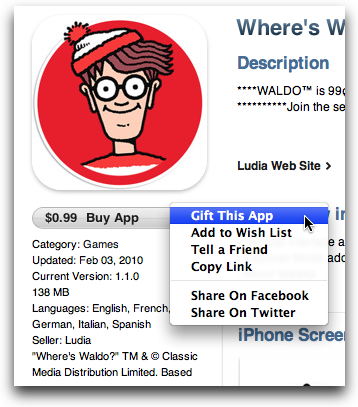
To gift an app, simply navigate to its page within the iTunes App Store, locate the drop-down menu next to the Buy App button, and select 'Gift This App.' Note, as gifting implies a purchase of some kind, it is only available for paid apps (though you can 'share' free apps through the same drop-down menu process).
Once you have selected to Gift the app, you will be brought to a special Gift page that allows you to enter your information and the recipient's, as well as to leave a personal message to be sent along with the gift code. You also have the option to print out the gift information, as opposed to sending it by email; presumably for those who want to retain some of the real-world niceties of gift giving by putting the certificate in a card.
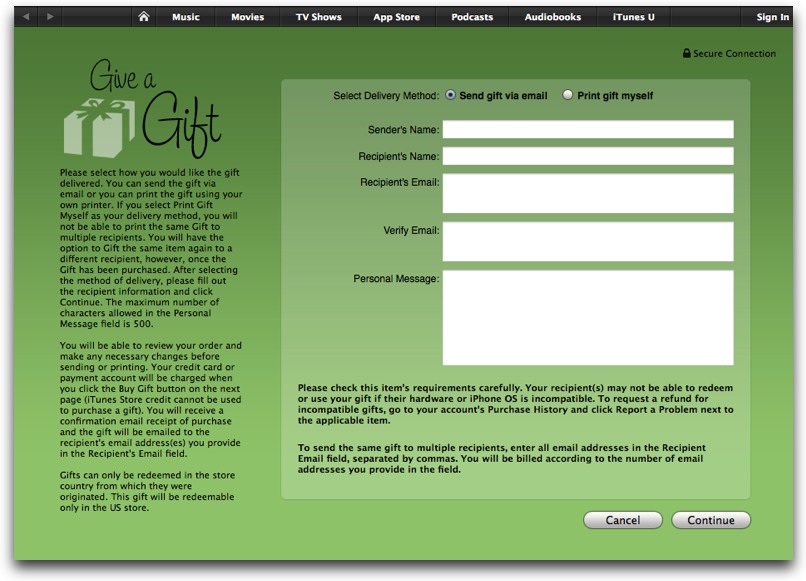
As one would expect, the gift is billed directly to your iTunes account. One unfortunate little catch is that gifts are only redeemable in the store country from which they were sent. That means if you're living in New York you won't be able to gift your friend in London, for example. Also, before gifting an app you want to be sure that your recipient is capable of running the program, so take a careful look at the iPhone OS and device requirements.
While it took a little too long to see it happen, it's certainly nice to have gifting capabilities brought to the App Store. The potential for revenue gains for both Apple and developers is huge, and given the range of what an app can be these days - a game, an organizer, a travel companion - it opens up a whole new arena of easy gifts for users (especially since they don't require the time or cost associated with shipping and handling).

4 Easy Steps To Promote Your Business On Facebook
2010-03-23
0
thoughts

Given its community of over 400 million users and climbing, it’s no wonder why most major businesses and brands now have a presence on Facebook (including MakeUseOf).
However, many self-marketers are a little uncertain about how to begin. Here are some practical, first steps to help you get started promoting your business on Facebook.
1. Create a Facebook Page
The Facebook “page” (not to be confused with a “profile” or “group”) was specifically designed by Facebook as a way for businesses, organizations, and Ashton Kutcher to communicate with the public in an official manner. Before creating any pages, you must first have a personal profile. Chances are that you already have one, but if not simply go to facebook.com to sign up.

Your personal profile, however, is generally not what you want to use to interact with your audience and promote your business on Facebook. You will hopefully connect with hundreds, or even thousands, of customers and potential customers on Facebook, but you probably don’t want them all to see your family reunion photos or your comments about last night’s American Idol (Facebook’s evolving privacy settings not withstanding).
Whether it’s for a company or solo freelancer, a fan page is better suited for business purposes. It is customizable, provides usage statistics, and people can become “fans” of your page without worrying about whether they are sharing any of their personal information with you. You can also add applications to your page such as a discussion board, shopping cart, and more.
Create your page
When creating your first Facebook page, I recommend going to the Facebook’s Advertising section, then clicking on “Pages” at the top. The tabs on this page (“Overview”, “Prepare”, and “Step-by-Step”) will provide you with some guidance on how to build and use your page. When you are ready to go for it, click on the “Create a Page” button on the top right, and Facebook will walk you through the process.

Choose your business type
First, you will be asked to select your type of business (local business or professional, national store or brand, musical artist or band, etc.). This business type will appear below your page listing in searches, and it may affect the customization options for your page. For instance, if you are a local business, you’ll have a special section to list your hours of operation.
Select a page name
Then you’ll need to enter a name for your page. You have 75 characters to work with, so you could include some terms that will help people find you when they perform a search on Facebook. Or you may choose to simply use the name of your company or website for consistency. Keep in mind that an overly wordy name might become visually overwhelming since it’s placed next to every post and comment you make.

Notes:
- Before you click “Create Page”, make sure you are happy with your choices because they cannot be modified. If you change your mind about your business type or name, you’ll have to start over with a new page and convince all of your fans to “re-fan” you at your new location.
- Your personal account is now the “admin” for the page, with the ability to manage its settings and content. However, you can also assign additional admins or even remove yourself if you eventually part from the business.
Find your page
Some people have difficulty finding their page because there is no link on the Facebook home page to take you to your fan pages. To find your page just go to facebook.com/pages and click on “Pages I Admin” on the top left. Alternatively, you can type the first 3 letters of the page’s name in the Facebook search box, and it will appear in the selection drop-down.
2. Customize Your Page
Now that you have created your page you will want to customize it for your business.
Add your company information
The first thing to do is add a profile image to your page. If you are a professional such as a consultant or photographer, you may choose to use a photo of yourself. If your page is for a company or product, you might want to use your company logo.
Then add a brief description of your business in the information box below your profile image, and also provide additional details under the “Info” tab such as a company overview, website addresses, products, etc.

Create a custom URL
In order to more easily direct people to your facebook page, you’ll want to create a custom website address like “http://facebook.com/bartswidgets”. To do this you’ll need to select a “username” for your page by going to facebook.com/username. You will have the option to select a username for your personal profile as well as usernames for your Facebook pages. For branding purposes, you will probably want to use the same name as your website. Or you might select something else simple and memorable.

Notes:
- The username is another item that cannot be changed once it is set, so choose carefully!
- Facebook’s currently policy is to only allow a username for pages that have 25 fans or more, so you’ll need to get a few people signed up before you can do this step.
When you’re ready to step-up your customization, and potentially your page’s popularity, add the Static FBML application to create a nice looking landing page. Look out for an upcoming MakeUseOf article to guide you through it.
3. Publicize Your Page
When Facebook users become “fans” and interact with your page, all of their friends will see their activity and may decide to become fans as well. This builds awareness of your page and your business through “word of mouse”. Here a few ways to help accelerate your exposure on Facebook:
Suggest to friends
Kickstart your fanbase by inviting your friends to join. First become a fan yourself by clicking “Become a Fan” at the top of the page. Your friends might notice and start becoming fans right away. For the more direct approach, click on the “Suggest to Friends” link below the profile image. Facebook will send an email invitation to all the friends you select.

Display on your website
Include links to your Facebook page on your website and blogs. Go to Facebook’s widget page to grab a “Page Badge” or “Fan Box” to display on your site. You can customize them to show your page activity, list of fans, and even a “Become a Fan” button to allow people to join without leaving your website. Also be sure to include a link to your Facebook page in any emails and electronic newsletters.

Promote offline

Create a Facebook ad (this is a paid service)

The beauty of Facebook is that you can target your ads based on demographics such as geography, gender, age, relationship status, and even employer. You have the option to pay for clicks (CPC – cost per click) or pay for impressions (CPM – cost per 1,000 times the ad is displayed).
Giveaway something

Note: Facebook’s policies continue to evolve regarding giveways and contests. Be sure to check their Terms of Service.
4. Be Interesting
To take full advantage of your page, you should post interesting content regularly. You certainly want to include updates about your products and services, but also consider customer stories, photos, and videos. If you have a blog, you can configure your page to display an RSS feed of your posts. Try to especially include articles or links that may be useful to your fans, and encourage them to participate through comments and discussion.
Your fan page is your home on Facebook, but you hope your messages will spread to all corners of the social network. Anything your fans find interesting they can share with their friends with one click. Plus any interactions they have with your page are automatically visible to their friends — that’s the promotional power of facebook.
What techniques do you use to promote your business on facebook?
Original Post 4 Easy Steps To Promote Your Business On Facebook
Watch March Madness Online: On-Demand Site Streams All Games, Even Has Boss Button [Timesavers]
2010-03-22
0
thoughts

The majority of this year's NCAA March Madness games have already been played, but if you're eager to catch up or want to be prepared for the final rounds, the NCAA's March Madness on Demand streaming player deserves a bookmark.
Normally we might say something about how watching basketball isn't necessarily much of a productivity booster, but if you're a March Madness fanatic, the most helpful thing we can offer is a quick link to the on-demand tool. You can, for example, watch any game that already finished using the on-demand site, so you can work through the game and catch up on the highlights later. In fact, the next game doesn't air until Thursday, so you can use the site between now and then to do all sorts of catching up.
One particularly nice touch: They've added a Boss Button to the pop-up player that, when clicked, pulls up a fun, though not-terribly-convincing, faux PowerPoint presentation that may or may not convince you're boss that you're actually doing work rather than staying up to date on the big dance.
2010 NCAA March Madness on Demand [NCAA.com via How-To Geek]
IKEA SIGNUM Series Cheaply Manages Your Cables

Clearly, we love clean workspaces here at Lifehacker, and we've featured many ways to hack cable management solutions together. For those of you less DIY-oriented, you can get buy pre-made solutions from IKEA—just as cheaply as you could make them.
We've mentioned one member of the SIGNUM series before in our going cordless feature, and we still love it—it's cheap, spacious, and requires little DIY work. However, IKEA offers tons of other options if you need something smaller, cheaper, or a bit less unsightly. The $5 cable organiser, for example (pictured above), is great if you are a laptop user, as it's easily transportable and actually hides your cables (unlike the aforementioned under-the-desk basket)—it's not the prettiest, but it's certainly better than a mess of cables, as well as cheap and easier than, say, the rain gutter hack. Check out the rest of the line for cheap charging stations and cable managers galore.
Original Post
This might be my future (ipad and wireless keyboard
2010-03-20
0
thoughts
Original Post
It is said that necessity is the mother of invention. While eagerly awaiting my iPad to arrive — is it April 3 yet? Pleaaaaase? — I had a stream of consciousness that went something like this: I like baseball; the iPad is a decent size to watch a streaming game on MLB’s iPhone app while I’m playing World of Warcraft, or working, or — well, who am I kidding — playing WoW. The Apple dock, while in addition to being a $30 hunk of plastic, only props up the iPad in portrait mode; it’s a little hard to watch the game that way.

As I was thinking this, I looked up and noticed the paper stand that I use for making changes to copy I’ve marked up. “Self,” I said to myself, “I betcha that’d hold an iPad real well.” After a quick screen capture, some resizing and printing, I had an iPad mockup with which to test.

It fit wonderfully. In both dimensions. The stand costs about $10 at your local office supply store. As a bonus, it folds up flat so I can toss it and my Bluetooth keyboard into my manpurse carry bag. It’ll be fantastic for working on the go. Of course, I may need a shock-resistant case for the thing if Papelbon coughs up a lead in the playoffs again. Not that I’m bitter about that.
How about you guys? Any low-cost solutions you’ve found?
MoviePeg is a simple, inexpensive way to prop up your iPhone to,...
2010-03-18
0
thoughts

MoviePeg is a simple, inexpensive way to prop up your iPhone to, for instance, watch video or use as an alarm clock. Very clever idea. I’ll be placing my order as soon as I hit the Create Post button. (thx DF)
MagnoGrip Holds Extra Nails, Screws, and More to Your Wrist [Stuff We Like]
Original Post

Hey you—you with the nails sticking out of your mouth while you're pounding away with your hammer. The relatively inexpensive MagnoGrip magnetic wristband holds nails, pins, nuts, and other hardware so you can stop holding it in your mouth.
There's not much to the MagnoGrip magnetic wristband beyond the cool name and whatever else meets the eye. It'll set you back around $11 from Amazon, and speaking as a kid who spent hours of his childhood holding screws, nails, nuts, and bolts for his DIY dad, it seems like it'd be worth every penny.
MagnoGrip 311-090 Magnetic Wristband [Amazon via Cool Tools]
How to Do What You’ve Always Wanted
Original Post

I’m willing to bet that there’s something you’ve always wanted to do.
It could be that you’ve always wanted to write a novel. Maybe you want to visit Africa or want to see the Northern Lights. Perhaps you’d love to open a little coffee shop or brasserie in your neighbourhood or maybe you’ve had brainwave for a neat little product that just might change the world.
You’re not alone. We all have things we dream about and things we’d love to do, and it’s rare that these things ever see the light of day.
Fear steps in – sometimes in the guise of practicality and sometimes wearing the hat of playing it safe – and provides all kinds of reasons why you can’t have what you want.
So you persuade yourself that it’s a pipe dream and that it could never actually happen because you wouldn’t know where to start, couldn’t afford it and it probably wouldn’t work anyway. You lose faith in your ability to make your dream reality, and lose a little faith in yourself in the process.
The tragedy is that the more you apply a filter to what you wish for and train yourself to think small, the less confident you become in your ability to do anything that matters very much. Worse than that, you set yourself tiny dreams that aren’t hard to reach, and you reach them.
But hang on a second. What if those big things were possible? What if you really could make some or all of it happen? What if it turned out that you did have what it takes to see something special come to life? Wouldn’t that be something you’d leap at?
Here are my 3 steps to doing what you’ve always wanted to do.
There’s no risk here – it’s simply learning about what’s involved, picking up the key strategies that have been used successfully before and gathering together the ideas and resources that you believe will help you to get things moving.
Write down all the questions you have about what you want to do and then go answer them. It’s possible that as you open things up you find that the reality isn’t what you expected and that it isn’t really your thing after all. That’s fine – now you know. But the opportunity to answer the questions you have and fill in those blanks is invaluable, and you might just find yourself getting pretty darn excited about what you’re discovering.
That’s all.
Do one thing, then another, then another (no matter how big or small) and you’ll make progress. By doing just one thing a day you’ll be 365 steps forward a year from now. Don’t get overwhelmed with the apparent size or complexity of what you’re tackling. No task is bigger than your capability and you just need to chunk it down into bite-sized pieces and tackle each one in turn.
And if something doesn’t turn out the way you expected or hoped, don’t sweat it. You have the next day to try things a different way or tackle things from another direction. You’ll never be able to control how everything turns out so don’t beat yourself up – just keep checking where you are, making your choice and taking another step.
These 3 steps can be applied universally to do the things you’ve always wanted. So tell me, what do you want?
Steve Errey almost died at age 5 as he choked on a grape. Today, Steve is a leading confidence coach for entrepreneurs and intrapreneurs, with a reputation for talking sense and getting results. Read more at The Confidence Guy and follow him on Twitter. He still loves grapes, despite the risks.
I’m willing to bet that there’s something you’ve always wanted to do.
It could be that you’ve always wanted to write a novel. Maybe you want to visit Africa or want to see the Northern Lights. Perhaps you’d love to open a little coffee shop or brasserie in your neighbourhood or maybe you’ve had brainwave for a neat little product that just might change the world.
You’re not alone. We all have things we dream about and things we’d love to do, and it’s rare that these things ever see the light of day.
Fear steps in – sometimes in the guise of practicality and sometimes wearing the hat of playing it safe – and provides all kinds of reasons why you can’t have what you want.
So you persuade yourself that it’s a pipe dream and that it could never actually happen because you wouldn’t know where to start, couldn’t afford it and it probably wouldn’t work anyway. You lose faith in your ability to make your dream reality, and lose a little faith in yourself in the process.
The tragedy is that the more you apply a filter to what you wish for and train yourself to think small, the less confident you become in your ability to do anything that matters very much. Worse than that, you set yourself tiny dreams that aren’t hard to reach, and you reach them.
But hang on a second. What if those big things were possible? What if you really could make some or all of it happen? What if it turned out that you did have what it takes to see something special come to life? Wouldn’t that be something you’d leap at?
Here are my 3 steps to doing what you’ve always wanted to do.
1. Open it up
First of all you need to do some leg work. Investigate what might be needed to get going, look for resources that can inform and help, seek out other people who might have done something similar and talk to those who’ve been there, done that.There’s no risk here – it’s simply learning about what’s involved, picking up the key strategies that have been used successfully before and gathering together the ideas and resources that you believe will help you to get things moving.
Write down all the questions you have about what you want to do and then go answer them. It’s possible that as you open things up you find that the reality isn’t what you expected and that it isn’t really your thing after all. That’s fine – now you know. But the opportunity to answer the questions you have and fill in those blanks is invaluable, and you might just find yourself getting pretty darn excited about what you’re discovering.
2. Make your choice
You’ve opened it up and answered a heap of questions you had – now you need to make your choice. There are 2 ways to help with this decision making.- Look at what really matters to you, not what doesn’t matter. If engaging with this project is something that really resonates with you then listen to that. If you’ll grow and get enjoyment out of doing this, no matter how it turns out, then listen to that. Don’t let any fears you have squash and stamp on what matters.
- Consider where your priorities are and what might need to change. You have other things going on (your family, finances, career, hobbies, relationship, etc) and you need to be clear about what’s at the top of your list. You need to figure out what compromises you’re willing to make in terms of the time and energy you have available, and you need to figure out the boundaries and deal breakers of your priorities. You might find that your priorities are such that now isn’t the right time to get going with this, but that doesn’t have to be the end of it. Just figure out what criteria needs to be satisfied for you to start.
3. Do one thing
When you’ve made your choice to start, do one thing today. Just one thing. Then do one more thing tomorrow.That’s all.
Do one thing, then another, then another (no matter how big or small) and you’ll make progress. By doing just one thing a day you’ll be 365 steps forward a year from now. Don’t get overwhelmed with the apparent size or complexity of what you’re tackling. No task is bigger than your capability and you just need to chunk it down into bite-sized pieces and tackle each one in turn.
And if something doesn’t turn out the way you expected or hoped, don’t sweat it. You have the next day to try things a different way or tackle things from another direction. You’ll never be able to control how everything turns out so don’t beat yourself up – just keep checking where you are, making your choice and taking another step.
These 3 steps can be applied universally to do the things you’ve always wanted. So tell me, what do you want?
Image: source
Steve Errey almost died at age 5 as he choked on a grape. Today, Steve is a leading confidence coach for entrepreneurs and intrapreneurs, with a reputation for talking sense and getting results. Read more at The Confidence Guy and follow him on Twitter. He still loves grapes, despite the risks.
Magic Mouse, Fixed Makes Your Magic Mouse More Ergonomic [Stuff We Like]
2010-03-17
0
thoughts
Original Post

If you're a big fan of Apple's Magic Mouse but not such a big fan of the hand and wrist pain that many people experience after extended use, you'll want to check out this cheap hack.
The Magic Mouse, Fixed is a $10 silicon add-on for the Magic Mouse, designed by a user named Will who was tired of sore hands after using the otherwise pleasant to use mouse. The product, seen in the photo above, simply suction cups onto the rear of the Magic Mouse to provide a soft but solid surface for your hand to rest on. Check out the video below to see it in action:

Visit the website at the link below for more information. Love the Magic Mouse? Ditched it for a naturally more comfortable mouse? Let's hear about it in the comments.


